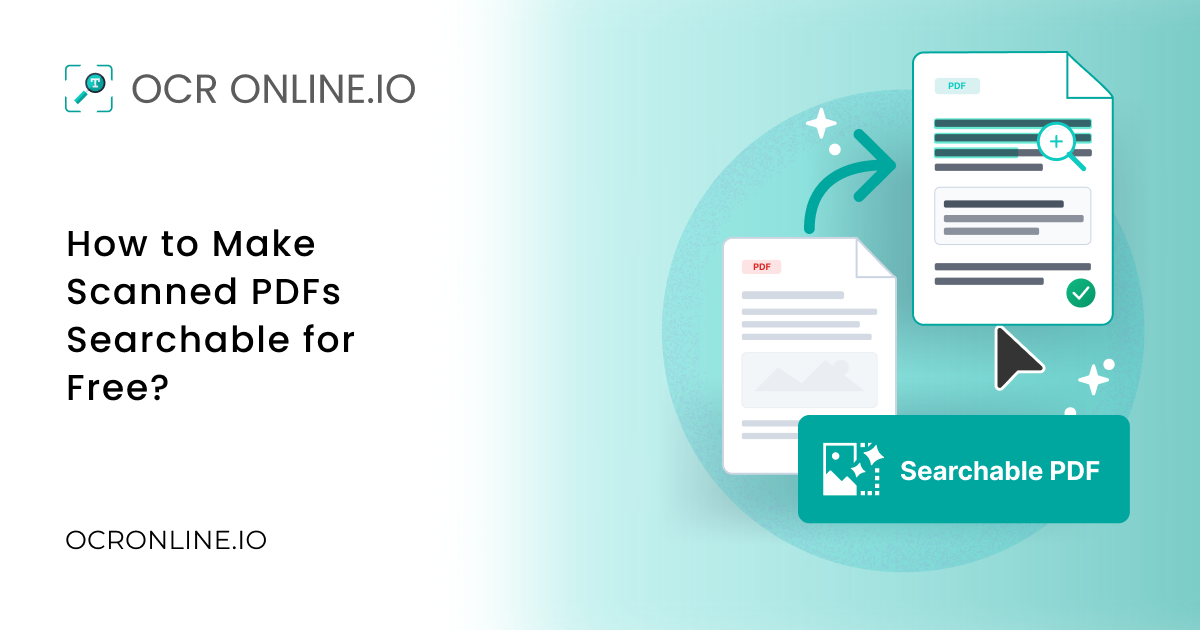
PDF is among the most-used document formats today. Sometimes, we get documents scanned in bulk and save them as PDF files.
Such PDF files are not searchable or selectable. They are just like having images placed inside them. You cannot select and copy the text either. Thanks to optical character recognition (OCR) technology, today we can make scanned PDF files searchable with one click.
In this blog post, we are covering different methods that can help you make a scanned PDF searchable for free.
|
Quick Answer The quickest, easiest, and most efficient way to make a PDF searchable is using OCR PDF. It is a free tool that we offer at OCR Online. Just open OCR PDF, upload your scanned PDF to it, and click ‘Convert PDF’. The tool processes the scanned PDF and instantly converts it into a searchable PDF. |
How is a Searchable PDF Different from a Scanned PDF?
A searchable PDF contains digital text that your computer can read. In it, you can search for words by using the search function or search tab. A searchable PDF is also selectable, allowing you to highlight, copy, and search recognized text. You can also use tools to edit or work with the text.
A scanned PDF usually contains images of printed pages. When you scan a document, the scanner saves each page as an image inside the PDF. A scanned PDF can display clear text visually while storing each page as an image rather than machine-readable characters. So, you cannot search or copy it in the normal way.
The main difference is how the PDF stores the text. A searchable PDF stores text as digital characters. A scanned PDF stores the page as an image.
Easy Ways to Make PDF Searchable for Free
There are various free methods available that help you convert a scanned PDF into a searchable PDF. Most of these methods work on a technology called optical character recognition (OCR).
OCR analyzes the text contained in scanned page images and adds a machine-readable text layer to the PDF. The original page image can remain visible while the added text layer allows you to search for, select, and copy recognized text.
This technology also has the ability to detect and extract readable characters from images.
Method 1. OCR PDF - Make PDF Searchable Online
OCR PDF is a free tool by OCR Online that is particularly designed to make scanned PDFs searchable. The tool uses advanced OCR technology to recognize text in scanned PDFs and create a searchable PDF. It supports bulk conversion and can process PDFs supplied through upload or a public URL.
To turn a scanned PDF into a searchable PDF using OCR PDF, follow these steps.
- Go to OCROnline.io.
- Open the OCR PDF tool.
- Upload your scanned PDF.
- Click the “Convert PDF” button to initiate the conversion of the PDF to a searchable PDF.
- Wait for the PDF conversion process into a searchable & selectabale PDF.
- Download the searchable PDF version.
- No sign-up or registration is needed
- No daily usage limits
- Supports bulk PDF conversion
- Can fetch input file from a public URL
- Recognizes text for a searchable PDF
- Delivers instant and high-accuracy results
- Provides watermark-free results
Cons:
- Requires Internet
- Unformatted plain text results
Method 2. Adobe Acrobat Pro - Make Searchable PDF With Software
Adobe Acrobat Pro also has OCR functionality, using which you can turn a scanned PDF searchable. The good thing about this tool is that it embeds an editable text layer in the existing position while retaining the formatting.
Follow these steps to make a PDF searchable using Adobe Acrobat Pro.
- Install Adobe Acrobat Pro or log in to your account via the Adobe Online website.
- Open the scanned PDF that you want to make searchable inside Adobe Acrobat Pro.
- Go to Tools and then Scan & OCR
- Click Recognize Text
- Save as a new PDF
Pros:
- Keeps the original PDF layout and formatting
- Creates searchable and editable text
- Offers accurate OCR for clear scanned documents
- Works well with large and complex PDF files
- Lets you review and correct recognized text
Cons:
- Paid & expensive
- Requires installation
Method 3. Google Drive - Extract Text from PDF Files
Google Drive also has built-in OCR functionality. Using it, you can extract text from PDF files. Yet, when the text is extracted, the formatting will be destroyed. You will get the text as raw, plain output that is unorganized.
Here’s how you can use it to make a PDF searchable:
- Open Google Drive
- Upload your scanned PDF to it
- Right-click the PDF
- Open with Google Docs (OCR will be implemented automatically)
- A document will open containing the scanned image and the extracted text
Pros:
- Free & online
- No installation required
- Works on mobile too
- Works best with English printed texts
Cons:
- Destroy formatting
- Requires login
- Struggles with non-English texts
Comparison Table
|
Feature |
OCR PDF |
Adobe Acrobat Pro |
Google Drive |
|
Free to use |
Yes |
No |
Yes |
|
Online |
Yes |
Yes |
Yes |
|
Installation needed |
No |
Yes |
No |
|
Creates searchable PDF |
Yes |
Yes |
No |
|
Editable Text |
Yes |
Yes |
Yes |
|
Keeps original Formatting |
No |
Yes |
No |
|
Bulk File Conversion |
Yes |
Yes |
Limited |
|
No sign-up required |
Yes |
No |
No |
|
Watermark-free |
Yes |
Yes |
Yes |
|
Works with large PDFs |
Yes |
Yes |
Limited |
|
Best for |
Quick searchable PDFs |
Professional PDF editing |
Basic text extraction |
When Should You Make a PDF Searchable?
You should make a PDF searchable when it contains scanned or image-based text. A searchable PDF makes it easier to find, copy, and work with information. Here are some common situations where it can help:
- Finding Information Quickly: Search for specific words or phrases without checking every page.
- Copying Text: Select and copy text from the PDF for use in other documents.
- Managing Scanned Documents: Make old scanned records easier to use and organize.
- Editing PDF Content: Use recognized text with PDF editing tools.
- Saving Time: Find important information in large documents within seconds.
- Improving Accessibility: Screen readers and other assistive tools can better work with digital text.
- Organizing Business Records: Make invoices, reports, forms, and other scanned files easier to manage.
Bottom Line
Making a scanned PDF searchable is easy. You can use an OCR tool to turn scanned pages into text. This lets you search, select, and copy text from your PDF.
You can use OCR PDF for a fast and free option. Adobe Acrobat Pro is useful if you want to keep the PDF layout. Google Drive is another free option for basic text extraction.
Choose the method that fits your needs. Then, you can find and use text in your scanned PDFs with ease.
Frequently Asked Questions
How do I Know My PDF is Searchable or Not?
Open the PDF and try to select a word with your cursor. You can also use the PDF viewer’s search function to look for a word that appears on the page. If the word cannot be selected or found even though it is visibly present, the PDF contains only scanned page images and needs OCR.
Can I OCR a Password-Protected PDF?
It depends on the type of protection applied to the PDF. Restrictions or encryption may prevent an OCR PDF tool from accessing or modifying the contents. If you have permission to process the document, you have to remove the password or security restrictions before running OCR on the PDF.
Can I Make a PDF Searchable Without Adobe?
Yes, you can make a scanned PDF searchable without Adobe by using our OCR PDF tool by ocronline.io. Upload the scanned PDF, let the OCR process recognize the text, and download the resulting searchable PDF.