OCR or optical character recognition is one of the most valuable technologies in the 21st century. With OCR, you can do things like copy text from inside images and convert physical documents into digital ones.
When you distill the process down to its simplest component, all you are really doing is pointing a camera at some text and copying it into a digital file.
Before OCR existed in its current form, extracting text from images was a manual task. It required someone who could read the target language and type it manually into a computer. Naturally, that is time-intensive and carries the risk of human error.
With OCR, such a process is completed in seconds and has a high percentage of accuracy (95+). People in airports, government offices, and even many businesses make use of OCR daily. Here’s how you can use it too.
How Does OCR Work?
Modern OCR works on the principles of computer vision and machine learning. The short explanation is that machine learning is used to teach computers how to understand patterns in images. In OCR, these patterns are obviously characters/letters.
When an image is provided to a computer for OCR, the following processes happen to extract the text.
1. Image Preprocessing
In this process, the image is prepped before being fed to the OCR engine. Prepping means doing things like:
- Deskewing– making the text in the image upright if it is at an angle
- Noise removal– editing out any stray particles and artefacts that will lead to bad OCR.
- Binarization– turning the image into black and white, so that the text appears clearly against the background.
This happens quite fast if you have a really powerful computer or if you are using a tool that is delegating the processing to a server via cloud computing.
2. Text Extraction
This is where the text is actually extracted. Different techniques are used to recognize the text and extract it. The two most commonly used techniques are:
- Pattern recognition– where letters are recognized based on their overall shapes.
- Feature extraction– where letters are recognized based on the collection of their features (i.e., an “H” is two parallel lines intersecting at a point).
These techniques may be used alone or together; however, most modern OCR tools use both so that all kinds of text can be recognized.
3. Post Processing
An NLP engine is used to ensure that the extracted text is sensible and is not gibberish. The engine is sensitive enough to realize when grammar or spelling mistakes in the text are intentional, so it does not mess with them.
Post-processing is required because OCR is not 100% accurate all the time. Sometimes, tricky fonts like cursive or bad handwriting can be misrecognized. With the appropriate post-processing, most of these errors can be minimized, and the overall accuracy is boosted to nearly 100%.
What Are The Uses of OCR
Nowadays, OCR is used in a lot of places for important things like the following.
- Verification of documents in banks, airports, and government offices.
- Data entry automation in hospitals, banks, government offices, etc.
- Digitizing printed or written books and papers.
- Preservinghistoricalrecords.
- Used in traffic monitoring systems to recognize license plate numbers.
- Real-time translation of written text from other languages.
These are some of the common uses of OCR in the modern world. Before OCR, all of these things had to be done manually. Therefore, they took a lot of time and effort. With OCR, these processes are now completed quickly and efficiently, causing minimal inconvenience.
Steps for Extracting Text From an Image With OCR
The method we are going to use requires online tools. The main advantage is that there's no need to install anything, and you can use it on any device with an internet connection.
With that out of the way, let’s check out the exact steps required to extract text from images with OCR.
1. Open An Online OCR Tool
To do this step, use a device with an internet connection and open a browser. In the search bar, type “image to text converter” or something to that effect.
You will be graced with a results page that has a list of OCR tools. You can use anyone that you like. However, for the purpose of this article, we will use our very own Ocronline.io tool.
You can click the link to visit it, or you can input its URL in the address bar to directly navigate to it.
2. Select Your Input Method
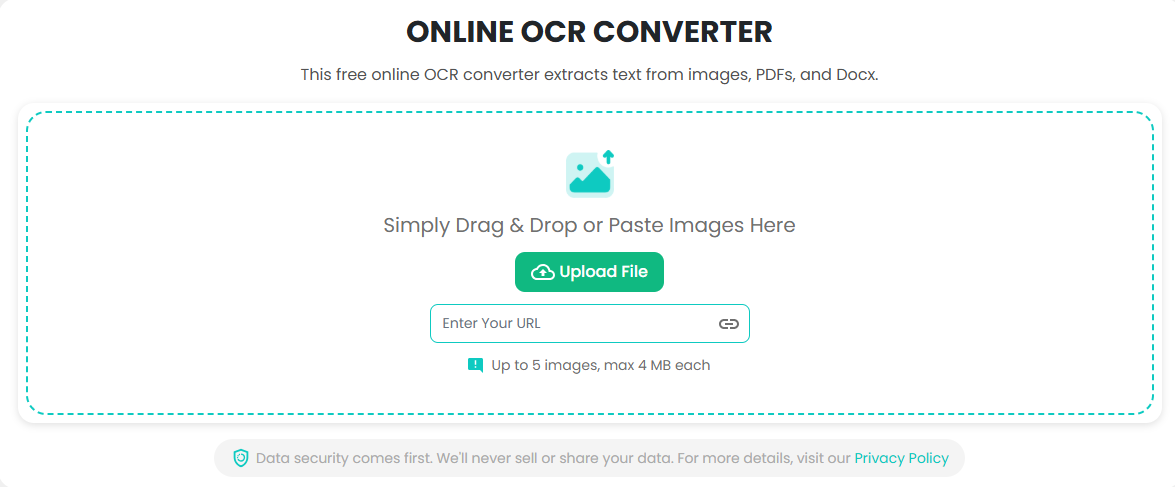
Ocronline.io lets you input up to four images at once. The supported formats include JPG, PNG, WEBP, JPEG, and PDF. You can input these images in three major ways. These are:
- Copying and pasting into the tool interface.
- Uploading images from your local storage.
- Providing a URL of an online image.
Select your preferred method and move on to the next step.
3. Extract Text From The Image
Once the image has been inputted, all you need to do is click the “Convert to Text” button to start the OCR process.
After a few moments, you will receive your output. It will be shown below the input field. Each image will have its output in front of it. You can download the output or copy it. Additionally, you can also edit it before saving.
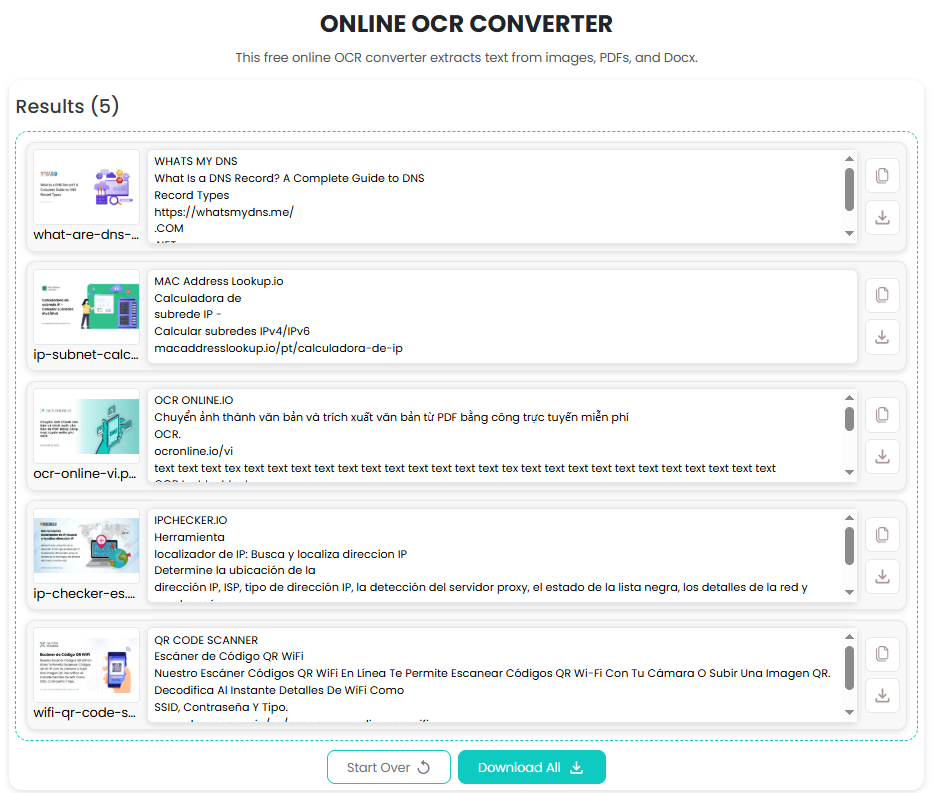
And you are done, your text has been extracted from the image, and all it took was a few seconds.
Tips for Using the OCR Online Converter
While OCR is an amazing technology, it is not infallible. It can fail if the image quality is poor or the text is indiscernible due to damage. Keeping these things in mind, there are some tips that you should use before attempting to extract text from images.
- Ensure that the image resolution is high. A high-resolution image is always better for OCR because the extra detail makes it easier to see different shapes and patterns.
- Ensure that the image is not blurred. Blurry images lose detail, making it hard to distinguish the characters.
- Ensure the image is clean. Clean photos don’t have any unwanted artefacts on them. This makes the preprocessing stage faster.
- Crop unnecessary elements to reduce the amount of processing required. If you want to extract text from a certain part of the image only, then crop the rest to avoid wasting time on it.
- Use a supported image format only; otherwise, the OCR process will not work.
- Always proofread the extracted text and edit it if necessary
- Do not share sensitive information on OCR tools, as it can be stolen by 3rd parties and used against your will.
Conclusion
Optical Character Recognition has completely transformed way to extract text from images. Using an online tool like Ocronline.io, you can easily extract text from images or scanned files without installing any software.
To use this, just upload your file, let the OCR engine process it, and you’ll have text ready to use. It’s fast, secure, and works across devices, making it one of the simplest ways to convert non-editable text into digital content.
So, the next time you need to extract text from a photo and scanned document remember that OCR technology can save you time, reduce errors, and make your workflow more efficient. With tools like Ocronline.io, text extraction is no longer a challenge.
Frequently Asked Questions
1. Can OCR Recognize Text in multiple languages?
Yes, many OCR tools support multiple languages and can even perform real-time translation.
2. Can OCR Extract Text from handwritten documents?
Yes, but accuracy depends on handwriting clarity. Modern OCR tools use AI to improve the recognition of cursive and difficult handwriting.
3. Which Image Formats are supported by OCR tools?
Most OCR tools support JPG, PNG, WEBP, and JPEG formats. Some advanced tools may support PDFs and TIFFs as well. Our tool, ocronline.io, supports all major image formats, including PDF and Docs files.